If You’re Building A Website With WordPress, One Of The Most Enjoyable Parts Of The Process Is Choosing A Theme. A WordPress Theme Controls The Overall Look And Feel Of Your Website—everything From The Layout And Colors To The Typography And Navigation.
Whether You’re Launching A Personal Blog, A Business Website, A Portfolio, Or An Online Store, The Right Theme Can Instantly Make Your Site Look Polished And Professional.
That Said, Many Beginners Feel A Bit Overwhelmed When It Comes Time To Actually Install A Theme. The Good News Is That WordPress Makes The Process Surprisingly Simple. Once You Understand The Basic Steps, Installing A Theme Takes Only A Few Minutes.
In This Guide, You’ll Learn How To Install A WordPress Theme Step By Step, Even If You’re Completely New To WordPress. We’ll Also Walk Through The Different Installation Methods, Share A Few Practical Tips, And Highlight Common Mistakes You’ll Want To Avoid.
Method 1: Install a WordPress Theme from the WordPress Directory
This is the easiest method and the one most beginners use.
The official WordPress theme directory includes thousands of free themes that can be installed directly from your dashboard.
Step 1: Log in to Your WordPress Dashboard
Open your browser and go to:
yourwebsite.com/wp-admin
Enter your username and password to access your dashboard.
Step 2: Navigate to the Themes Section
In the left-hand menu, go to:
Appearance → Themes
Here you’ll see the themes currently installed on your website.
Step 3: Click “Add New”
At the top of the page, click the Add New button.
This will open the WordPress theme library where you can browse and search for themes.
Step 4: Search for a Theme
You can browse themes by:
- Popular themes
- Latest releases
- Featured themes
Or simply search by name.
For example, try searching for:
- Astra
- OceanWP
- Neve
WordPress will display previews of available themes.
Step 5: Preview the Theme
Before installing anything, it’s a good idea to preview the theme.
Click Preview to see how the theme might look on your website. This gives you a rough idea of the design and layout.
Step 6: Install the Theme
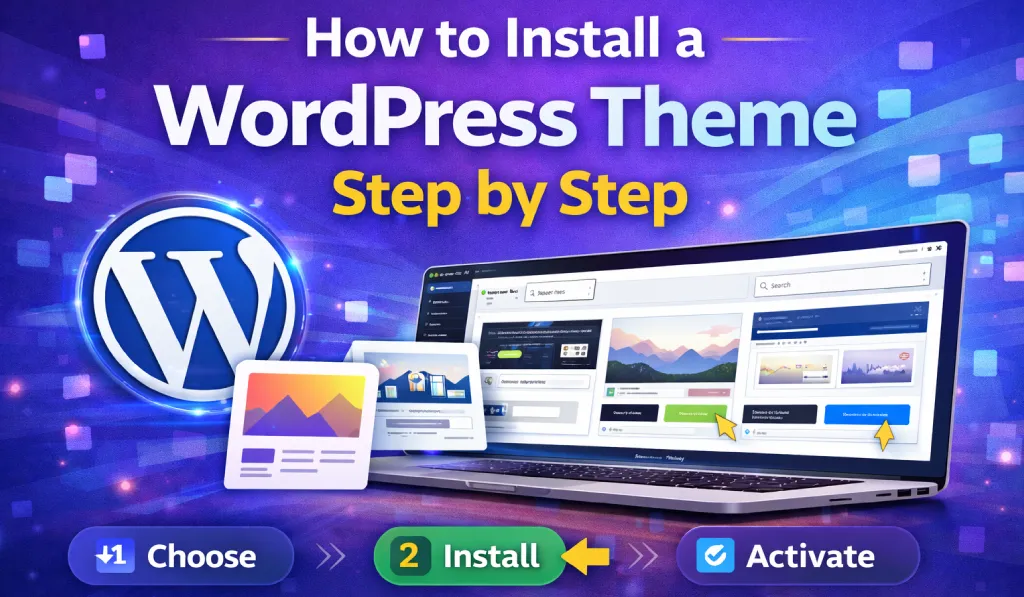
Once you find a theme you like, click the Install button.
WordPress will automatically download and install the theme for you.
Step 7: Activate the Theme
After installation finishes, click Activate.
Your new theme is now live on your website.
That’s it—you’ve successfully installed your first WordPress theme.
Method 2: Upload a WordPress Theme Manually
Sometimes you’ll download themes from third-party marketplaces such as:
- ThemeForest
- TemplateMonster
- GiTCLAB
- Independent theme developers
- Premium theme providers
These themes usually come as a ZIP file.
Here’s how to install them.
Step 1: Download The Theme ZIP File
After purchasing or downloading the theme, you’ll receive a file that looks like this:
theme-name.zip
Do not unzip this file.
Step 2: Open The Themes Section
In your WordPress dashboard, go to:
Appearance → Themes
Then click Add New.
Step 3: Click “Upload Theme”
At the top of the screen, select the Upload Theme option.
Step 4: Choose the ZIP File
Click Choose File and select the theme ZIP file from your computer.
Step 5: Install the Theme
Click Install Now.
WordPress will upload and install the theme automatically.
Step 6: Activate the Theme
Once installation is complete, click Activate.
Your premium theme is now active and ready to use.
Method 3: Install a WordPress Theme Using FTP
This method is a bit more advanced and is usually used by developers or experienced users.
You may need to install a theme using FTP if:
- The theme file is very large
- The dashboard upload fails
- Your hosting provider has restrictions
Step 1: Extract the Theme File
First, unzip the theme file on your computer.
You should see a folder like:
theme-name
Step 2: Connect to Your Website Using FTP
Use an FTP client such as:
- FileZilla
- Cyberduck
- WinSCP
Connect to your hosting account using your FTP credentials.
Step 3: Navigate to the Themes Folder
Go to this directory:
/wp-content/themes/
Step 4: Upload the Theme Folder
Upload the extracted theme folder into the themes directory.
Step 5: Activate the Theme
Once the upload is complete, go back to your WordPress dashboard.
Navigate to:
Appearance → Themes
You’ll see the newly uploaded theme. Click Activate to start using it.
What to Do After Installing a WordPress Theme
Installing the theme is only the beginning. To make your site look the way you want, you’ll need to customize it.
Here are a few important next steps.
Customize Your Theme
Go to:
Appearance → Customize
From here you can adjust things like:
- Website logo
- Colors and typography
- Header and footer layout
- Homepage structure
- Menus and widgets
This is where your website really starts to take shape.
Install Recommended Plugins
Many themes rely on plugins to unlock additional features.
Some common plugins you might see recommended include:
- Elementor – drag-and-drop page builder
- WooCommerce – for creating online stores
- Yoast SEO – for improving search engine optimization
- Contact Form 7 – for building contact forms
Always check the theme documentation for plugin recommendations.
Import Demo Content
Many premium themes offer a demo import feature.
This allows you to replicate the theme’s demo design with just a few clicks.
Instead of building everything from scratch, you can import the demo layout and simply replace the content with your own.
It’s a huge time saver, especially for beginners.
Common WordPress Theme Installation Problems
Even though installing a theme is simple, beginners sometimes run into a few issues.
Let’s look at some common problems and how to fix them.
Theme Upload Failed
This usually happens when:
- The theme file exceeds the server upload limit
- The wrong file is uploaded
Possible solutions include:
- Uploading the theme via FTP
- Increasing the PHP upload limit in your hosting settings
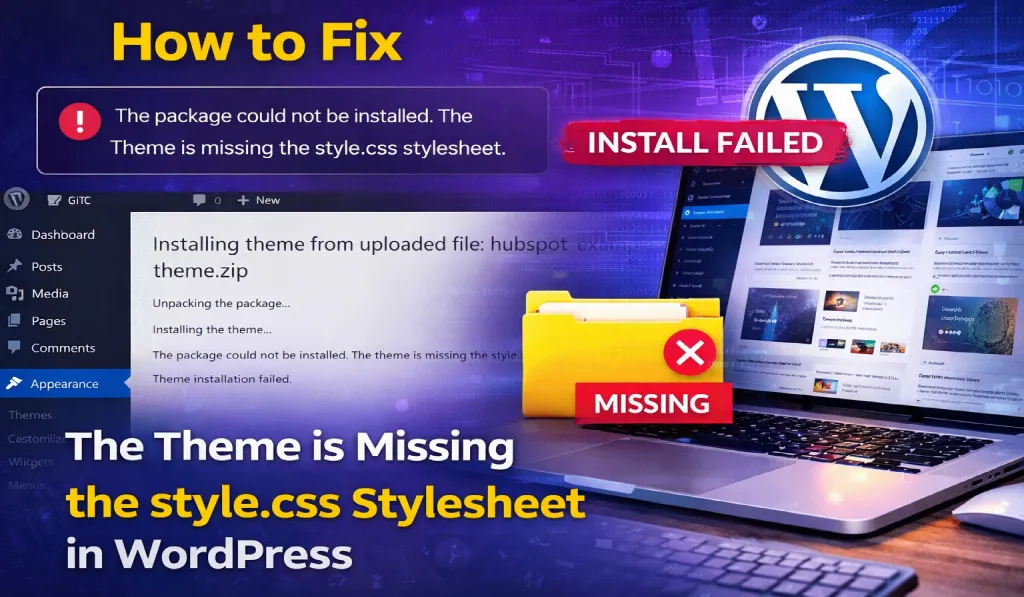
“Stylesheet Missing” Error
This error usually appears when the wrong ZIP file is uploaded.
Many theme downloads include the full package, documentation, and extra files.
Make sure you’re uploading the actual theme installation ZIP, not the full package.
Theme Not Displaying Correctly
If your theme installs but doesn’t look right, it’s often because required plugins are missing.
Check the theme documentation and install any recommended plugins.
Conclusion
Learning how to install a WordPress theme step by step is one of the first skills every WordPress user should learn.
Thankfully, WordPress makes the process incredibly beginner-friendly. Whether you install a theme from the official directory, upload a premium theme, or use FTP, the steps are straightforward.
To quickly recap:
- Use the WordPress theme directory for free themes
- Upload ZIP files for premium themes
- Use FTP if the dashboard installation fails
Once your theme is installed, spend some time customizing it, installing necessary plugins, and optimizing your website for speed and SEO.
With the right theme in place, your WordPress site can look professional, load quickly, and provide a great experience for visitors.
FAQs
1. How do I install a WordPress theme manually?
You can manually install a theme by going to Appearance → Themes → Add New → Upload Theme, selecting the ZIP file, and clicking Install Now.
2. Can I install multiple themes in WordPress?
Yes, WordPress allows you to install multiple themes. However, only one theme can be active at a time.
3. Are free WordPress themes safe?
Yes, themes from the official WordPress theme directory are generally safe because they are reviewed before being published.
4. Why can’t I upload a theme in WordPress?
This usually happens due to file size limits or hosting restrictions. Uploading the theme via FTP can often solve the problem.
5. Do I need plugins after installing a theme?
Often yes. Many themes rely on plugins like page builders, SEO tools, or eCommerce plugins to unlock full functionality.
6. Can I change my WordPress theme later?
Yes, you can change your theme anytime. Just keep in mind that switching themes may affect certain layouts or design elements depending on the new theme.