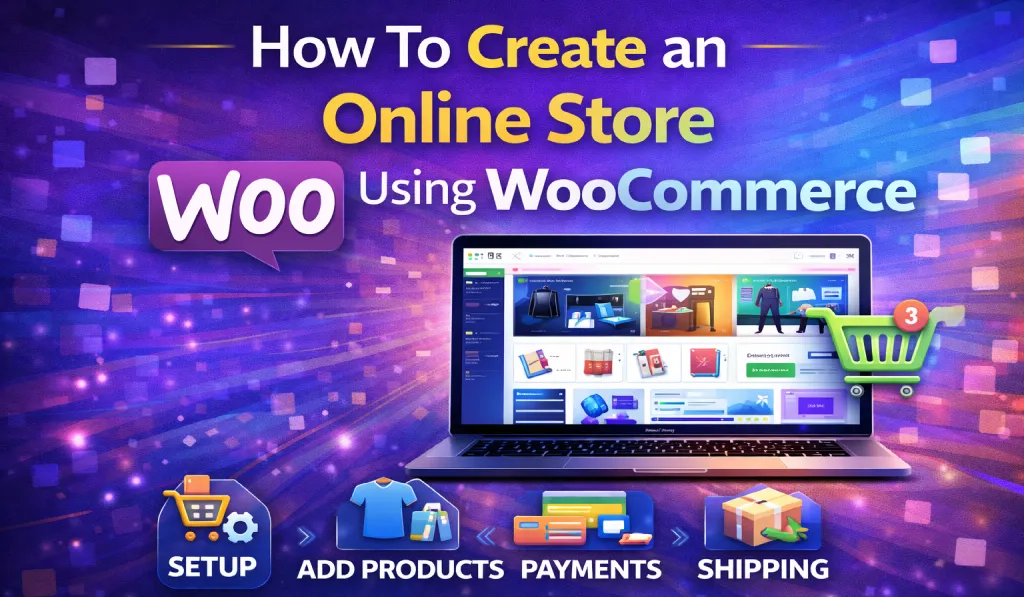
Starting An Online Store Once Meant Dealing With Complicated Platforms, Hiring Expensive Developers, And Learning A Fair Amount Of Technical Stuff. For Many People, It Simply Wasn’t Practical.
Fortunately, Things Are Very Different Today.
With WordPress And Woocommerce, Almost Anyone Can Build A Professional Online Store—even If You’ve Never Written A Single Line Of Code. Whether You’re A Blogger Who Wants To Sell Digital Products, A Freelancer Creating Stores For Clients, Or A Business Owner Ready To Move Online, Woocommerce Makes The Entire Process Surprisingly Straightforward.
In This Guide, You’ll Learn How To Create An Online Store Using Woocommerce Step By Step, From Choosing Hosting To Launching Your Store. By The End, You’ll Have A Clear Roadmap To Building Your Own Ecommerce Website.
Let’s Dive In.
- 1 Why Choose WooCommerce for Your Online Store?
- 2 Step-by-Step Guide: How to Create an Online Store Using WooCommerce
- 3 Step 1: Get a Domain Name and Web Hosting
- 4 Step 2: Install WordPress
- 5 Step 3: Install the WooCommerce Plugin
- 6 Step 4: Choose a WooCommerce-Compatible Theme
- 7 Step 5: Add Products to Your Store
- 8 Step 6: Configure Payment Methods
- 9 Step 7: Set Up Shipping Options
- 10 Step 8: Install Essential WooCommerce Plugins
- 11 Step 9: Optimize Your Store for SEO
- 12 Step 10: Test and Launch Your Store
- 13 Practical Tips for Running a Successful WooCommerce Store
- 14 Common Mistakes to Avoid
- 15 Conclusion
- 16 FAQs
Why Choose WooCommerce for Your Online Store?
Before we get into the setup process, it’s worth understanding why WooCommerce has become one of the most popular eCommerce solutions in the world.
WooCommerce is a free WordPress plugin that turns a regular website into a fully functional online store. Once installed, it gives you everything you need to manage products, accept payments, handle shipping, and track orders.
There are several reasons why millions of websites rely on WooCommerce:
- It’s free and open-source
- Highly customizable
- Huge ecosystem of plugins and extensions
- Supports both physical and digital products
- Multiple payment gateway integrations
- Built with SEO in mind
- Easily scalable as your business grows
From small handmade craft stores to large online brands, WooCommerce is flexible enough to support almost any type of eCommerce business.
Step-by-Step Guide: How to Create an Online Store Using WooCommerce
Now let’s walk through the full process of building your WooCommerce store.
Step 1: Get a Domain Name and Web Hosting
Before you can build your store, you need two essential things: a domain name and web hosting.
1. Domain Name
Your domain name is the address people type into their browser to visit your site. For example:
yourstore.comTry to choose a domain that:
- Is short and easy to remember
- Matches your brand name
- Is simple to spell and pronounce
For instance, if you plan to sell handmade candles, something like GlowCandleShop.com is far better than a long or complicated name.
2. Web Hosting
Hosting is where your website files live on the internet. Without hosting, your website simply can’t exist online.
For a WooCommerce store, you’ll want hosting that offers:
- WordPress optimization
- Fast loading speeds
- A free SSL certificate
- Regular backups
- Strong security features
Some popular hosting providers include:
- SiteGround
- Bluehost
- Hostinger
- Cloudways
Most of these companies also offer one-click WordPress installation, which makes things much easier for beginners.
Step 2: Install WordPress
Once you’ve purchased hosting, installing WordPress usually takes only a few minutes.
The process typically looks like this:
- Log in to your hosting account dashboard
- Find the WordPress Installer
- Enter your website name
- Create an admin username and password
- Click Install
That’s it.
Within a few minutes, your WordPress website will be ready to go.
You can access your dashboard at:
yourwebsite.com/wp-adminThis dashboard is where you’ll manage everything—from adding products to customizing your store.
Step 3: Install the WooCommerce Plugin
Now it’s time to turn your WordPress site into a real online store.
Follow these steps:
- Go to your WordPress Dashboard
- Click Plugins → Add New
- Search for WooCommerce
- Click Install Now
- Click Activate
After activation, WooCommerce automatically launches a setup wizard.
This wizard guides you through some important store settings, including:
- Store location
- Currency
- Payment options
- Shipping preferences
- Recommended features
It only takes a few minutes, but it lays the foundation for your entire WooCommerce store.
Step 4: Choose a WooCommerce-Compatible Theme
Your theme controls how your website looks and feels. A good WooCommerce theme will make your store look professional while also ensuring everything runs smoothly.
When choosing a theme, look for one that is:
- Fast and lightweight
- Mobile responsive
- WooCommerce compatible
- Easy to customize
Here are a few popular options.
WoodMart
WoodMart is one of the fastest WordPress themes available. It’s lightweight, flexible, and works perfectly with WooCommerce.
Key features include:
- Fast loading performance
- Pre-built starter templates
- Deep WooCommerce integration
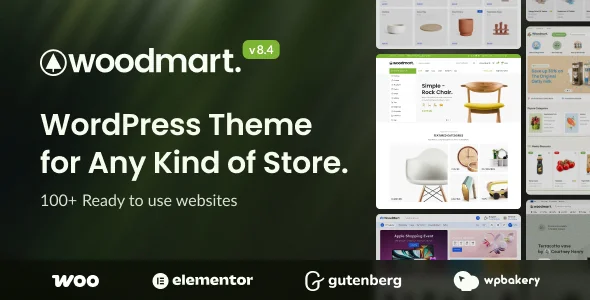
Download WoodMart Theme From GiTCLAB
(License-Activated)
✔ Latest Version Available ✔ Regular Updates
✔ 100% GPL Licensed (Not Nulled) ✔ Instant Download
Download WoodMart Theme NowFlatsome
Flatsome is widely used for professional eCommerce websites.
It includes:
- Built-in page builder
- Beautiful product layouts
- Advanced customization options

Download Flatsome Theme From GiTCLAB
(License-Activated)
✔ Latest Version Available ✔ Regular Updates
✔ 100% GPL Licensed (Not Nulled) ✔ Instant Download
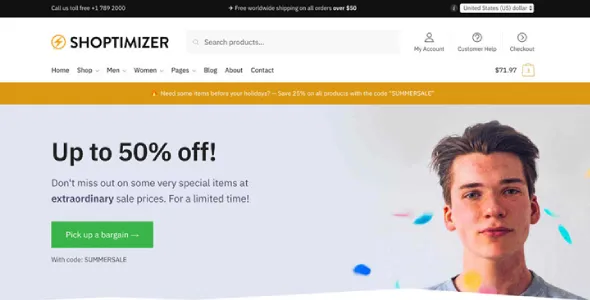
Download Flatsome Theme NowShoptimizer
Shoptimizer is the official WooCommerce theme, created by the WooCommerce team itself.
It offers:
- Perfect compatibility
- Clean and minimal design
- Lightweight performance
Download Shoptimizer Theme From GiTCLAB
(License-Activated)
✔ Latest Version Available ✔ Regular Updates
✔ 100% GPL Licensed (Not Nulled) ✔ Instant Download
Download Shoptimizer Theme NowYou can install themes directly from:
Appearance → Themes → Add New
Step 5: Add Products to Your Store
This is where your store starts to come to life.
To add products, go to:
Products → Add New
Here you can enter important details such as:
- Product title
- Description
- Price
- Product images
- Categories
- Tags
WooCommerce supports several product types.
Simple Products
These are standard products with no variations.
Examples include:
- Books
- T-shirts
- Gadgets
Variable Products
Variable products allow options like:
- Size
- Color
- Style
For example, a T-shirt might be available in small, medium, and large, and in multiple colors.
Digital Products
WooCommerce is also perfect for selling digital goods like:
- eBooks
- Online courses
- Software
- Templates
For instance, if you run a photography blog, you might sell Lightroom presets, digital prints, or photography tutorials.
Step 6: Configure Payment Methods
Customers need a convenient way to pay, so setting up payment gateways is essential.
WooCommerce supports many payment methods, including:
- PayPal
- Stripe
- Razorpay
- Credit and debit cards
- Bank transfers
- Cash on delivery
To configure payments, go to:
WooCommerce → Settings → Payments
Simply enable your preferred payment option and follow the setup instructions.
Pro tip: Offering multiple payment options usually increases conversion rates because customers can choose what they’re most comfortable with.
Step 7: Set Up Shipping Options
If you’re selling physical products, you’ll also need to configure shipping.
Navigate to:
WooCommerce → Settings → Shipping
WooCommerce allows you to create shipping zones based on geographic locations.
For example:
- India
- United States
- Europe
Within each zone, you can define shipping methods such as:
- Free shipping
- Flat-rate shipping
- Local pickup
Example Setup
You might configure shipping like this:
India: Flat rate ₹50
International: Flat rate $10
This keeps shipping simple and predictable for customers.
Step 8: Install Essential WooCommerce Plugins
WooCommerce works well right out of the box, but a few plugins can improve functionality and performance.
Here are some helpful ones to consider.
Rank Math SEO
This plugin helps optimize your product pages for search engines.
It allows you to manage:
- SEO titles and descriptions
- Schema markup
- Keyword optimization
WooCommerce Stripe Payment Gateway
Makes it easy to accept credit card payments directly on your website.
WP Rocket
A powerful caching plugin that improves website speed and performance.
WooCommerce PDF Invoices
Automatically generates invoices for customer orders.
Mailchimp for WooCommerce
Helps you build an email list and run email marketing campaigns.
Just be careful not to install too many plugins, as that can slow down your site.
Step 9: Optimize Your Store for SEO
If you want people to discover your products through Google, SEO is extremely important.
Here are a few simple ways to improve your WooCommerce SEO.
Optimize Product Titles
Avoid vague titles.
For example:
Bad title:
Shoes
Better title:
Men’s Lightweight Running Shoes – Breathable Sports Sneakers
Detailed titles help both customers and search engines understand the product.
Write Helpful Product Descriptions
Instead of writing one or two sentences, include:
- Product features
- Benefits
- Specifications
- Use cases
Good descriptions not only improve SEO but also increase conversions.
Optimize Product Images
Use:
- Compressed images for faster loading
- Descriptive file names
- ALT tags
Example:
black-running-shoes.jpgOrganize Product Categories
Categories improve both navigation and search rankings.
For example:
- Clothing
- Accessories
- Electronics
- Digital Products
Clear structure makes your store easier to browse.
Step 10: Test and Launch Your Store
Before launching your store to the public, take time to test everything.
Here’s a quick checklist:
- Test the checkout process
- Verify payment gateways
- Check mobile responsiveness
- Test shipping calculations
- Confirm email notifications work
Also review:
- Page speed
- Broken links
- Product images
Once everything runs smoothly, you’re ready to launch your store.
Congratulations—you’ve officially learned how to start a WooCommerce store.
Practical Tips for Running a Successful WooCommerce Store
Building your store is only the beginning. The real challenge is growing it.
Here are a few practical tips.
Focus on Website Speed
A slow website can drive customers away.
Improve speed by using:
- Fast hosting
- Image compression
- Caching plugins
Use High-Quality Product Images
Great product photos can significantly boost sales.
Consider using:
- Multiple product angles
- Zoom features
- Lifestyle images showing the product in use
Offer Discounts and Coupons
WooCommerce allows you to create coupon codes.
For example:
WELCOME10Small incentives like this often encourage first-time purchases.
Build an Email List
Email marketing remains one of the most powerful tools for eCommerce.
You can send:
- Promotions
- Product launches
- Abandoned cart reminders
- Seasonal offers
Over time, your email list can become one of your most valuable assets.
Common Mistakes to Avoid
Many beginners run into similar issues when setting up their WooCommerce stores.
Try to avoid these common mistakes:
- Installing too many plugins
- Using slow or cheap hosting
- Writing weak product descriptions
- Ignoring mobile optimization
- Skipping SEO basics
Fixing these early will save you a lot of frustration later.
Conclusion
Starting an online store today is easier than ever. With WordPress and WooCommerce, you can create a powerful eCommerce website without hiring developers or learning complex coding.
By following this guide, you now know how to:
- Install WooCommerce
- Add products
- Configure payment methods
- Set up shipping
- Optimize your store for SEO
Whether you want to sell physical products, digital downloads, or services, WooCommerce gives you the flexibility and tools you need to grow your business online.
The next step is simple—start building your store.
FAQs
1. Is WooCommerce free to use?
Yes, WooCommerce itself is completely free. However, you may need to pay for hosting, premium themes, or additional plugins depending on your needs.
2. Do I need coding skills to create a WooCommerce store?
No. WooCommerce is beginner-friendly, and most features can be managed directly from the WordPress dashboard.
3. How long does it take to build a WooCommerce store?
A basic store can be set up in 2–4 hours, but creating a fully optimized store with products, design, and SEO can take several days.
4. Can I sell digital products with WooCommerce?
Yes. WooCommerce supports digital downloads such as:
- eBooks
- Online courses
- Software
- Templates
5. Which payment gateways work with WooCommerce?
Some of the most common options include:
- PayPal
- Stripe
- Razorpay
- Square
- Bank transfers
6. Is WooCommerce good for SEO?
Yes. Because it runs on WordPress, WooCommerce is very SEO-friendly. Plugins like Rank Math or Yoast can help further optimize your store.
7. What are the best WooCommerce themes?
Some popular WooCommerce themes include:
- WoodMart
- Flatsome
- Shoptimizer
These themes offer excellent performance, flexibility, and compatibility with WooCommerce.