Running a WordPress website can be incredibly exciting. Whether you’re starting a personal blog, building websites for clients, running an online store, or launching a digital business, WordPress gives you the flexibility to create almost anything you can imagine.
However, there’s one reality many beginners overlook.
WordPress websites are frequent targets for hackers.
Now, before that sounds alarming, here’s the reassuring part: WordPress itself is very secure. In fact, it powers millions of websites worldwide. Most security issues don’t come from WordPress itself—they usually happen because of outdated plugins, weak passwords, poor configurations, or simply ignoring basic security practices.
The good news? With a few smart precautions, you can protect your website from the majority of common attacks.
In this guide, we’ll walk through how to secure your WordPress website step by step, using simple and practical methods that even beginners can follow.
Why WordPress Website Security Matters
Before we dive into the solutions, it’s important to understand why website security should never be ignored.
When a website gets hacked, the consequences can be serious. It’s not just about losing access to your site—it can affect your reputation, traffic, and even your business.
Some common problems caused by a hacked website include:
- Loss of important website data
- Google blacklisting your site
- Malware spreading to visitors
- Sudden drops in SEO rankings
- Loss of customer trust
- Website downtime
- Stolen customer or user information
Imagine waking up one morning and discovering your homepage replaced by a hacker’s message. Even worse, visitors trying to access your site might see a warning saying your website contains malware.
Situations like these can damage your brand and take weeks—or even months—to recover from.
That’s why securing your WordPress website should be something you focus on from the very beginning, not after something goes wrong.
How to Secure Your WordPress Website (Step-by-Step)
Let’s go through some of the most effective and practical WordPress security tips you can implement today.
1. Choose a Secure WordPress Hosting Provider
Website security actually begins with your hosting provider.
A good hosting company doesn’t just store your website files—they also provide essential security protections at the server level.
Reliable hosting providers usually offer:
- Server-level firewalls
- Malware scanning
- Automatic backups
- DDoS protection
- Updated PHP versions
- Security monitoring
Cheap or poorly managed hosting often skips these important protections.
Think of hosting like the foundation of a house. If the foundation isn’t strong, everything built on top of it becomes vulnerable. Investing in quality hosting is one of the smartest decisions you can make for your website’s security.
2. Keep WordPress Updated
One of the simplest ways to protect your WordPress site is also one of the most overlooked: keeping everything updated.
You should regularly update:
- WordPress core
- Installed plugins
- WordPress themes
Updates aren’t just about new features. Most updates include security patches that fix vulnerabilities discovered by developers.
For example, if a plugin developer finds a security flaw, they release an update to fix it. But if you delay installing that update, hackers can exploit that vulnerability on outdated sites.
A simple tip:
Whenever possible, enable automatic updates for plugins and minor WordPress releases.
3. Use Strong Login Credentials
Weak passwords are one of the easiest ways for hackers to break into a website.
Unfortunately, many users still rely on passwords like:
- admin123
- password
- 123456
These can be cracked in seconds.
Instead, create strong passwords that include:
- Uppercase letters
- Lowercase letters
- Numbers
- Special symbols
For example:
W@rdPr3ss!Secure2026
Another important tip: avoid using “admin” as your username. Hackers often try this first during brute-force attacks.
Using a password manager like Bitwarden or LastPass can make it much easier to generate and store secure passwords.
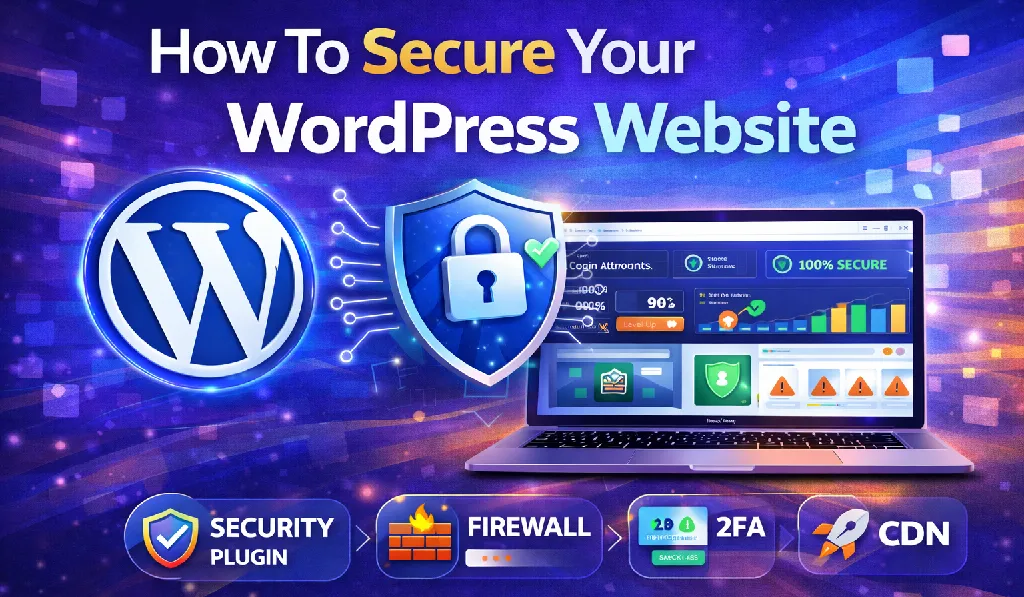
4. Install a WordPress Security Plugin
If you’re looking for a quick way to improve your website’s protection, installing a security plugin is a great place to start.
Security plugins add an additional layer of protection by monitoring your website and blocking suspicious activity.
Some popular WordPress security plugins include:
- Wordfence Security
- Sucuri Security
- iThemes Security
- All In One WP Security
These plugins offer features such as:
- Malware scanning
- Firewall protection
- Login security
- File change detection
- IP blocking for suspicious traffic
For beginners, a good security plugin can act like a 24/7 security guard for your website.
5. Enable Two-Factor Authentication (2FA)
Two-factor authentication adds an extra layer of protection to your login process.
With 2FA enabled, logging in requires two steps:
- Your password
- A temporary verification code
Even if someone manages to steal your password, they still can’t access your account without the second code.
That code is typically generated through:
- Google Authenticator
- Authentication apps
- Email verification
- SMS codes
Most security plugins include built-in support for two-factor authentication.
6. Change the Default WordPress Login URL
By default, WordPress login pages are located at:
yourwebsite.com/wp-admin

yourwebsite.com/wp-login.php
Hackers know this—and they often target these URLs using automated attacks.
One simple trick is to change your login page URL to something unique.
Plugins like WPS Hide Login or iThemes Security allow you to create custom login URLs such as:
yourwebsite.com/mysecurelogin
This small change makes it much harder for automated bots to find your login page.
7. Limit Login Attempts
Hackers often use bots that repeatedly attempt different password combinations to break into accounts.
This type of attack is known as a brute force attack.
By limiting login attempts, your website automatically blocks users after several failed login attempts.
Plugins that help with this include:
- Limit Login Attempts Reloaded
- Wordfence Security
This simple feature dramatically reduces the risk of automated password attacks.
8. Install an SSL Certificate (HTTPS)
An SSL certificate encrypts the connection between your website and its visitors.
Without SSL, your site appears as:
http://yourwebsite.com
With SSL enabled, it becomes:
https://yourwebsite.com
This encryption protects sensitive data such as login credentials, contact form submissions, and payment information.
SSL also provides additional benefits:
- Improved user trust
- Protection against data interception
- Better search engine rankings
Most hosting providers now offer free SSL certificates through Let’s Encrypt, so there’s really no reason not to use one.
9. Backup Your Website Regularly
Backups are your ultimate safety net.
Even with strong security measures in place, no system is completely immune to problems. A backup ensures you can quickly restore your website if something goes wrong.
Popular WordPress backup plugins include:
- UpdraftPlus
- All-in-One WP Migration
- BlogVault
- BackupBuddy
- Jetpack Backup
Best practices for backups:
- Schedule daily backups
- Store backups in cloud storage
- Keep multiple backup versions
A reliable backup can save you hours—or even days—of stress.
10. Use a Web Application Firewall (WAF)
A Web Application Firewall (WAF) protects your site by filtering malicious traffic before it reaches your server.
It helps defend against common threats such as:
- SQL injection attacks
- Cross-site scripting (XSS)
- Malware attempts
- DDoS attacks
Some popular firewall services include:
- Cloudflare
- Sucuri Firewall
- Wordfence Firewall
For business websites or high-traffic blogs, a firewall adds a powerful extra layer of protection.
11. Remove Unused Plugins and Themes
Many WordPress sites accumulate unused plugins and themes over time.
Even if they’re inactive, they can still create security risks—especially if they contain outdated code.
A good rule of thumb is simple:
- Delete unused plugins
- Delete unused themes
- Only keep what you actively use
A cleaner website is usually a safer and faster website.
12. Disable File Editing in WordPress
WordPress allows administrators to edit theme and plugin files directly from the dashboard.
While convenient, this feature can also be exploited by hackers if they gain access to your account.
You can disable this option by adding the following line to your wp-config.php file:
define('DISALLOW_FILE_EDIT', true);
This prevents file modifications from the dashboard, adding another small but valuable layer of protection.
13. Protect the wp-config.php File
The wp-config.php file contains some of the most sensitive information about your website, including:
- Database credentials
- Authentication security keys
- Important configuration settings
Because of this, hackers often try to target it.
You can protect this file using .htaccess rules or server-level restrictions, though many modern hosting providers already include basic protection for it.
14. Use Trusted WordPress Themes and Plugins
Not all themes and plugins are created equal.
One of the biggest security mistakes beginners make is downloading nulled or pirated themes. These often contain hidden malware or backdoors.
Instead, always download themes and plugins from trusted sources such as:
- WordPress.org
- ThemeForest
- GiTCLAB
- Elegant Themes
- StudioPress
Using trusted software significantly reduces the risk of security issues.
A Simple Real-World Security Example
Let’s say you run a WordPress blog and follow these practices:
- Strong passwords
- Security plugin installed
- Firewall enabled
- Two-factor authentication
- Regular backups
Now imagine a hacker attempts to attack your site.
Here’s what happens:
- The firewall blocks suspicious traffic
- Login protection stops brute-force attempts
- Malware scanning detects threats early
- Backups allow instant recovery if needed
This multi-layer security approach makes your website extremely difficult to compromise.
Final Thoughts
Learning how to secure your WordPress website is one of the most valuable skills for any website owner.
The best part? You don’t need to be a cybersecurity expert to do it.
By following a few simple steps, you can dramatically improve your website’s safety:
- Use secure hosting
- Keep WordPress updated
- Install a security plugin
- Enable two-factor authentication
- Use strong passwords
- Backup your website regularly
- Install an SSL certificate
Think of WordPress security like protecting your home.
One lock helps—but multiple layers of protection provide real security.
Start implementing these WordPress security tips today, and your website will be far better protected from hackers and malware.
Frequently Asked Questions (FAQs)
1. Is WordPress secure for websites?
Yes. WordPress is very secure when properly maintained. Most security problems occur due to outdated plugins, weak passwords, or poorly configured websites.
2. What is the best plugin to secure a WordPress website?
Some of the most popular security plugins include:
- Wordfence Security
- Sucuri Security
- iThemes Security
These tools offer features like malware scanning, firewalls, and login protection.
3. How often should I update WordPress?
You should update WordPress core, plugins, and themes as soon as updates become available, especially when they include security fixes.
4. Do I need an SSL certificate for WordPress?
Yes. SSL encrypts data between your website and visitors. It also improves user trust and is an important ranking factor for Google.
5. Can WordPress websites get hacked?
Yes, any website can be hacked if security practices are ignored.
However, following proper WordPress security practices significantly reduces the risk.
6. Should I install multiple WordPress security plugins?
No. Installing multiple security plugins can create conflicts and slow down your site.
It’s usually better to choose one powerful security plugin that provides multiple protection features.